There are a few ways to view and download imaged documents connected to your shipment, such as bills of lading, delivery receipts, and invoices.
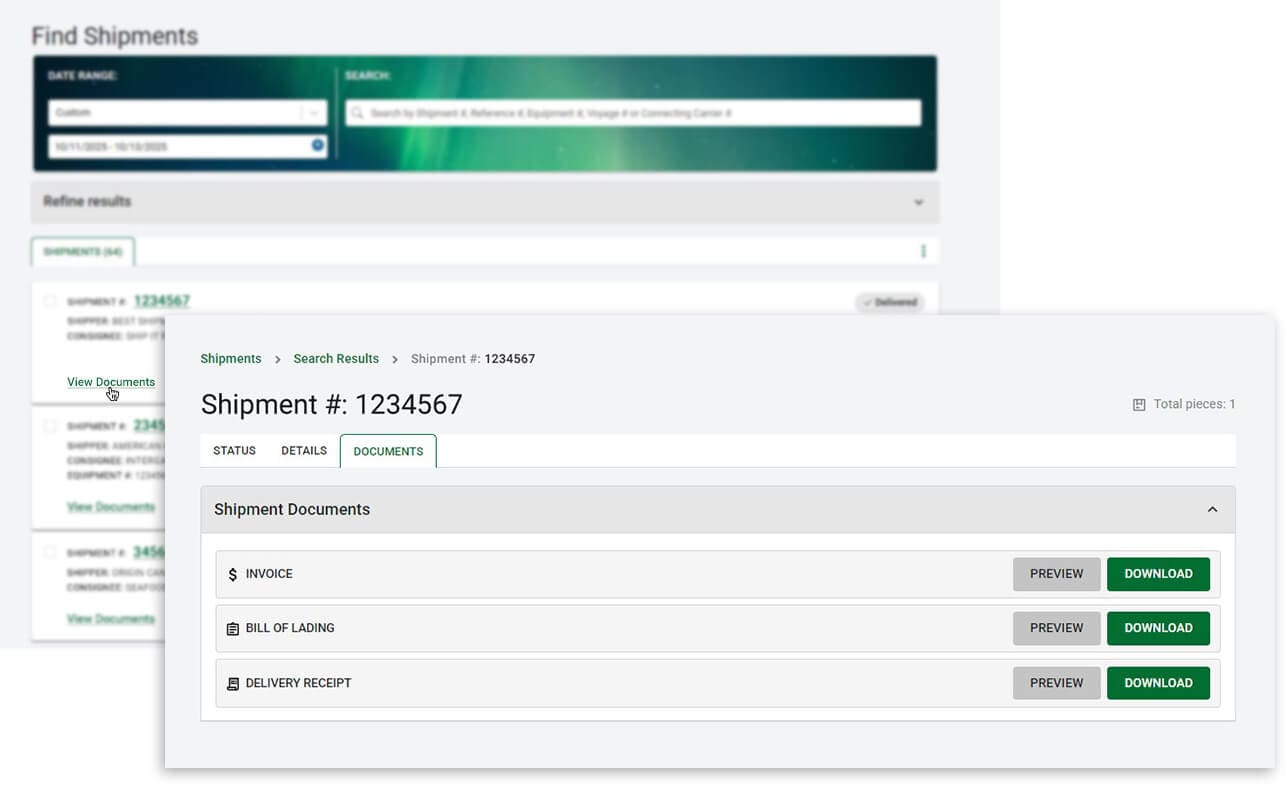
View Documents Link within Tracking Results
Once you have searched and located your shipment in the tracking results, click on the View Documents link to be taken straight to the list of available documents for that shipment.
Accessing Documents from Shipment Information
After locating your shipment number in the tracking results, click on it to open the Status tab. On this tab, you’ll see details about the shipment’s progress. To view any available documents related to the shipment, navigate to the Documents tab.
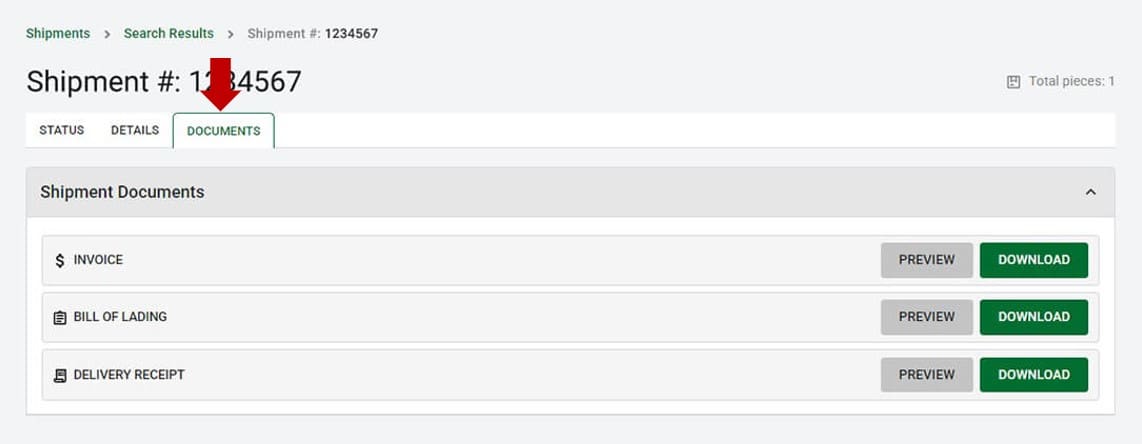
Click on the bill of lading, delivery receipt, or invoice links to either preview the document or download it.
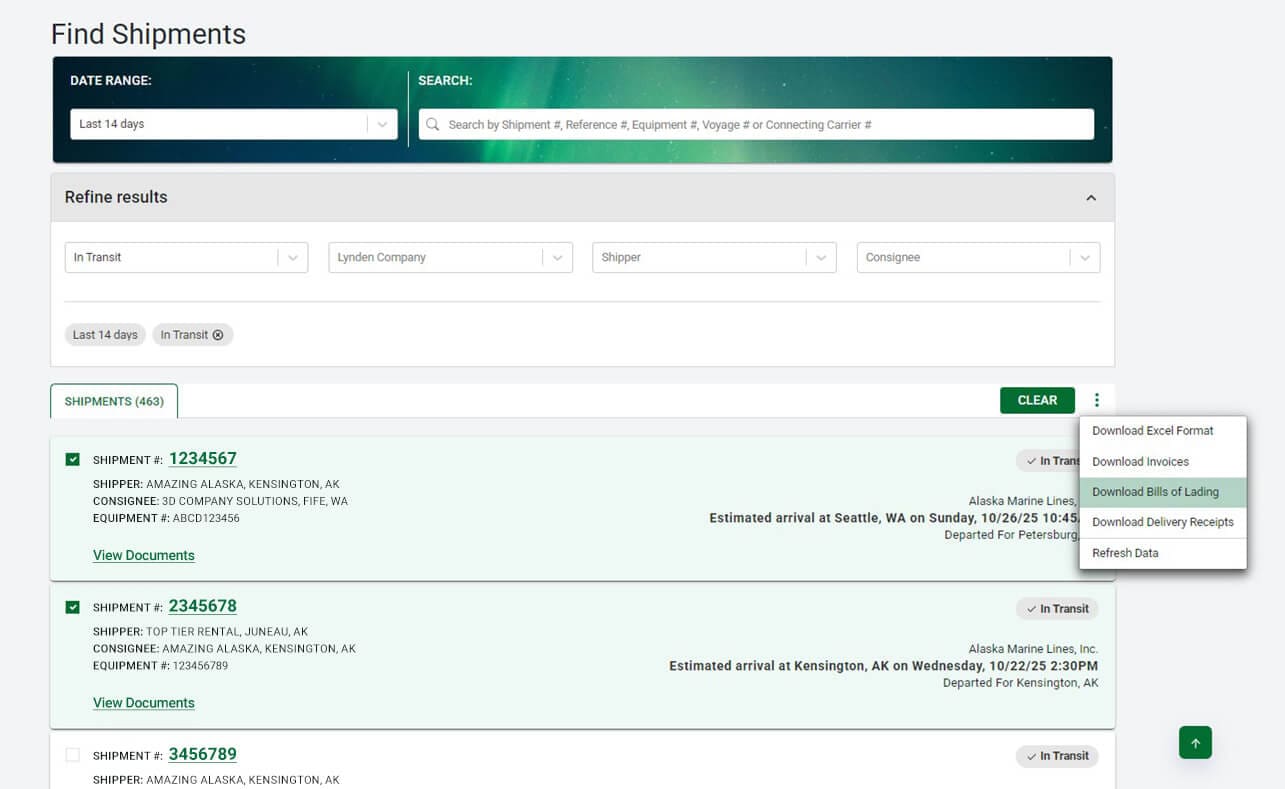
Multi-select Shipments and Download Documents in Batches
Once you have searched, from the tracking results page use the checkboxes to select multiple shipments and click the more options icon to download related documents (like bills of lading, delivery receipts, and invoices) or export the selected results to Excel. Downloaded documents will combine into one file. Learn more about how to Multi-select Shipments.
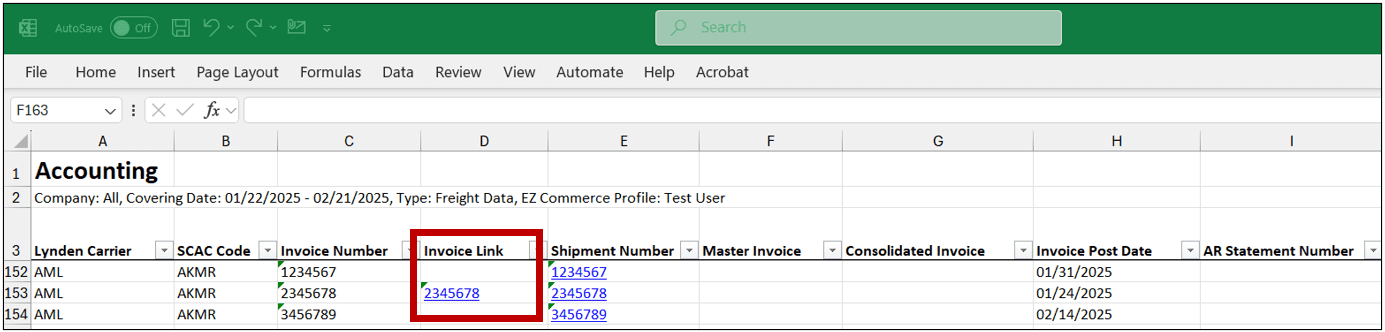
Links to Invoices from Reports
The Accounting, Outstanding Balance, and All Columns Reports generated in EZ Commerce include hyperlinks to invoices that have been posted. Both freight and miscellaneous non-freight invoices are available. You should have access to these invoices if your EZ Commerce profile is set up to view invoices and you or your company are listed as the billing party on the shipment. Learn more about Reports in EZ Commerce.