Need to adjust or delete a scheduled report in EZ Commerce? To edit a scheduled report, navigate to the menu and select Reports.

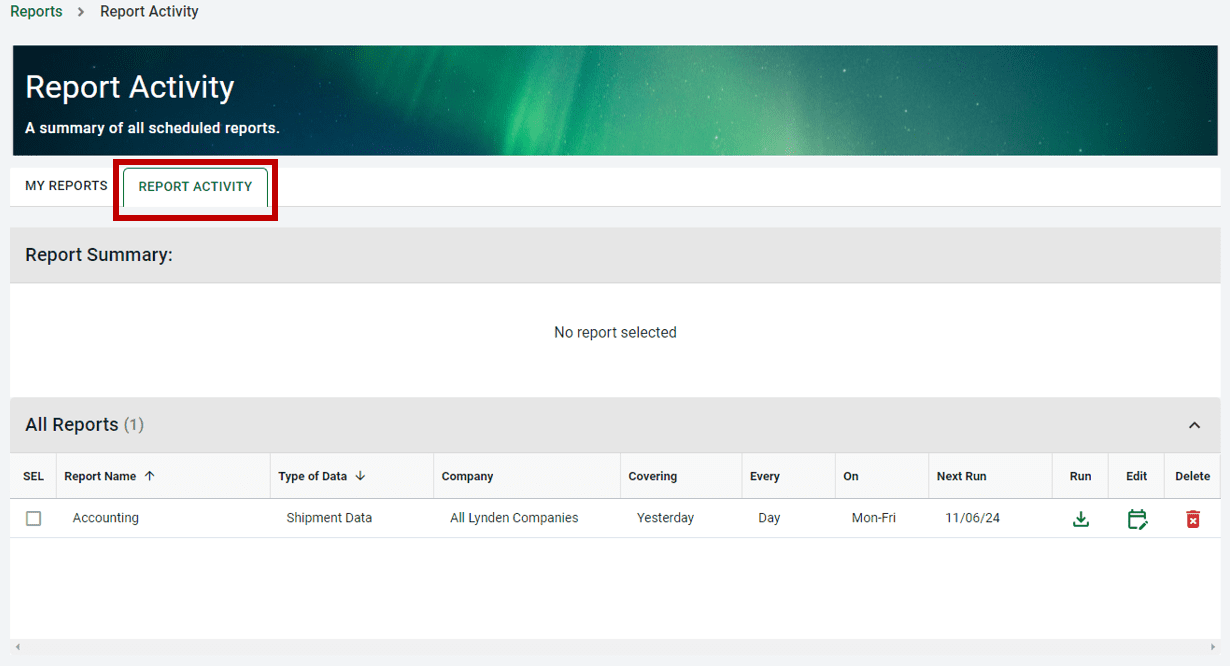
Click on the Report Activity tab towards the top of the page. The Report Activity tab provides an overview of all scheduled reports, including both standard and custom reports, for a customer account. Here, you can manage and edit schedules as needed.
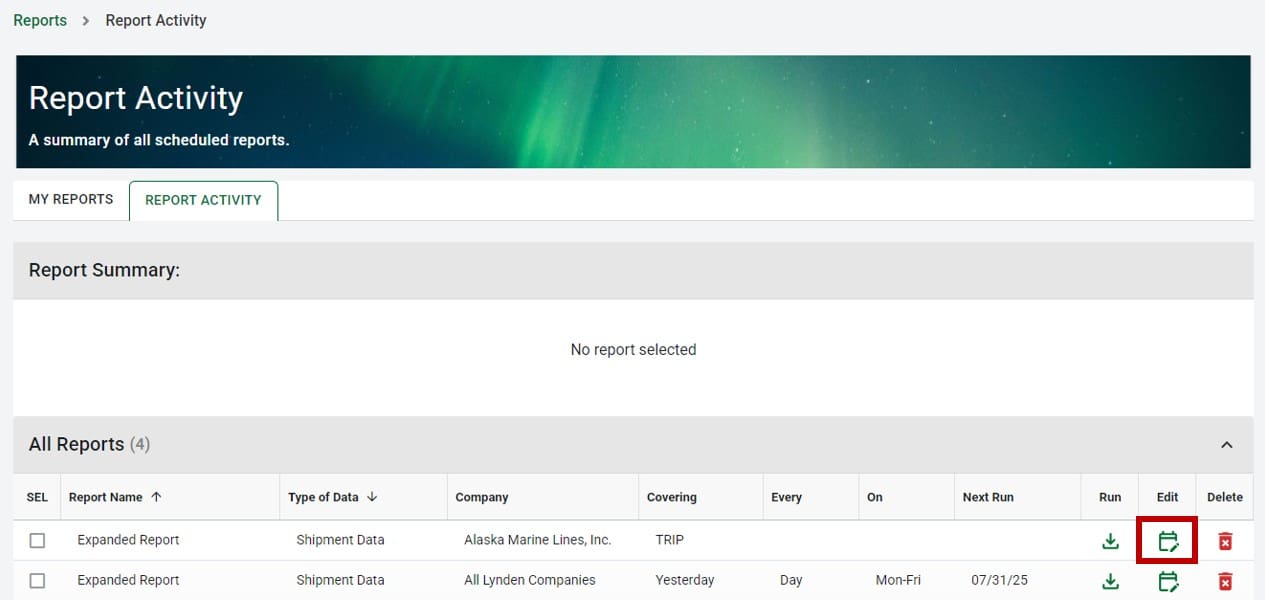
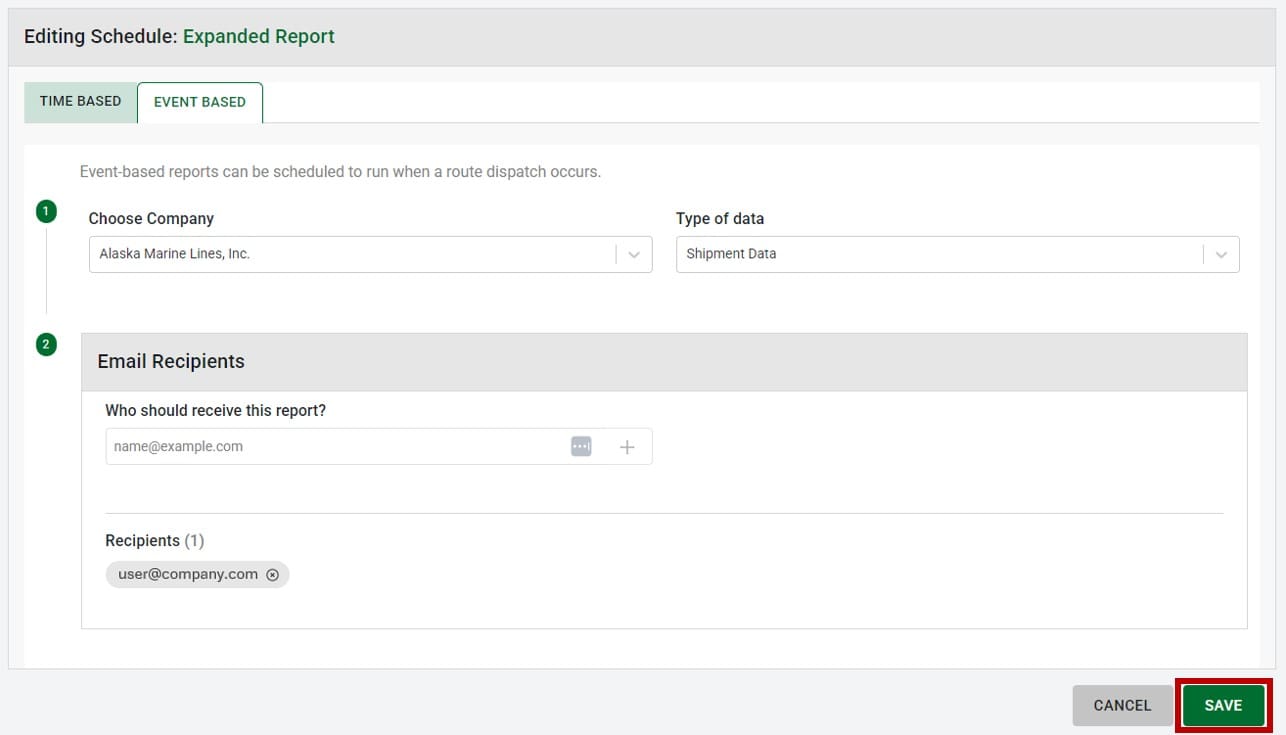
To edit a scheduled report, locate the report name in the All Reports list and then click the Edit icon in that row. This will take you to the Scheduling section where you can update the schedule settings, such as company, type of data, email recipients, and report frequency.
Once adjustments have been made, click Save.
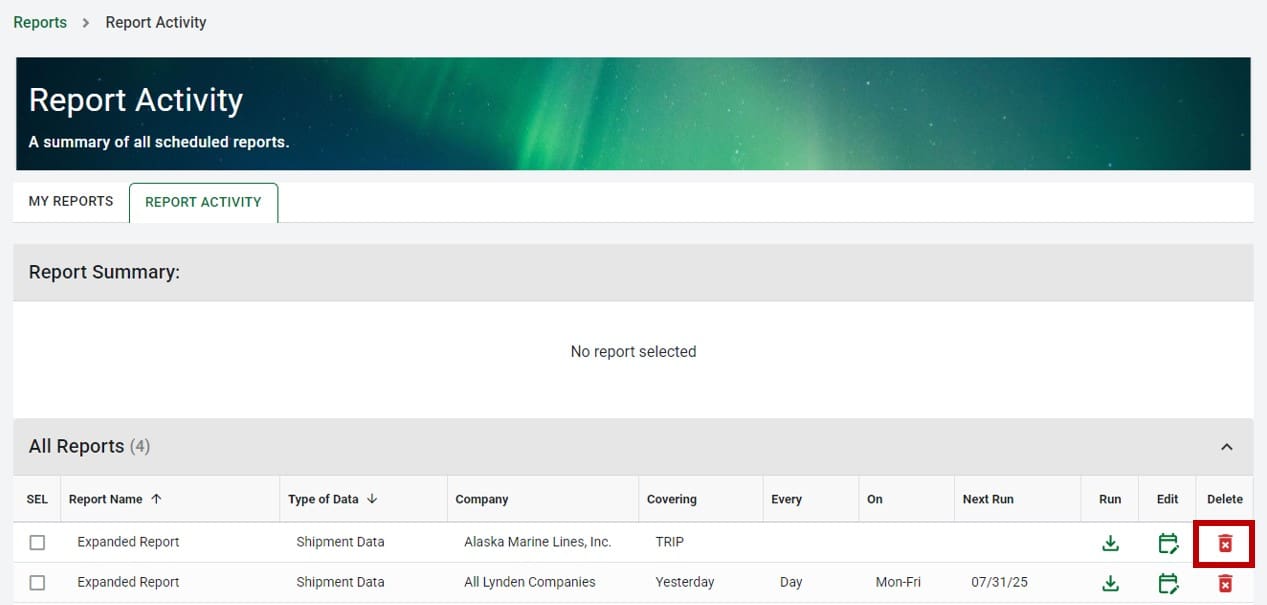
You can also delete a scheduled report if desired.
Note: Deleting a scheduled report removes the schedule for all users tied to the account. To delete a scheduled report, locate the report name in the All Reports list and then click the Delete icon in that row.