
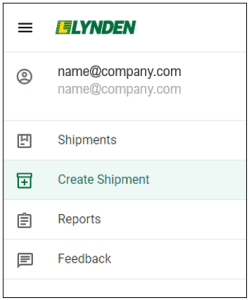
EZ Commerce lets you initiate shipments with Lynden companies and maintain a set of templates and contacts to make your regular shipments even easier. To access the Create a Shipment section, expand the top left menu in EZ Commerce and click on Create Shipment.
From the New Shipment page, you can create new shipments from blank shipping documents, templates or previously on hold shipments.
- The New Shipment box on the right contains links to initiate shipments with the Lynden companies that you have been set up for. If you are interested in expanding the options in your account, please ask your account manager. Click the appropriate link to begin filling in details on a blank form for a new shipment with that Lynden company.
- The main area of the New Shipment page contains a list of templates with basic information, including the last used date, template name, and form. The list of templates can be sorted by clicking the header of each column. To open a template and create a new shipment, click the blue template name. View the templates help page for more detail.
- The navigation bar at the top gives you access to the On-Hold, Activity, and Contacts tools. The On-Hold tab gives you access to submit a shipment from any that were previously put on hold. The Activity tab shows all shipments submitted to EZ Commerce and the Contacts tab contains your address book.

After selecting the appropriate new shipment type, complete the form with your shipment information. The forms may look slightly different depending on your shipment type, but some sections include:
Shipment Event Notifications: This section allows you to specify who will receive notifications about the shipment. If you would like to include more than one email, separate by a comma. This is a good place to include consignee and/or broker contact information. Along with a notification that the shipment was initiated, associated documents and labels can also be sent by placing check marks in each box.

Shipper and Consignee: These sections can be filled in from your contact list by clicking the green address book icon or by typing into the name field and selecting from the dropdown options.

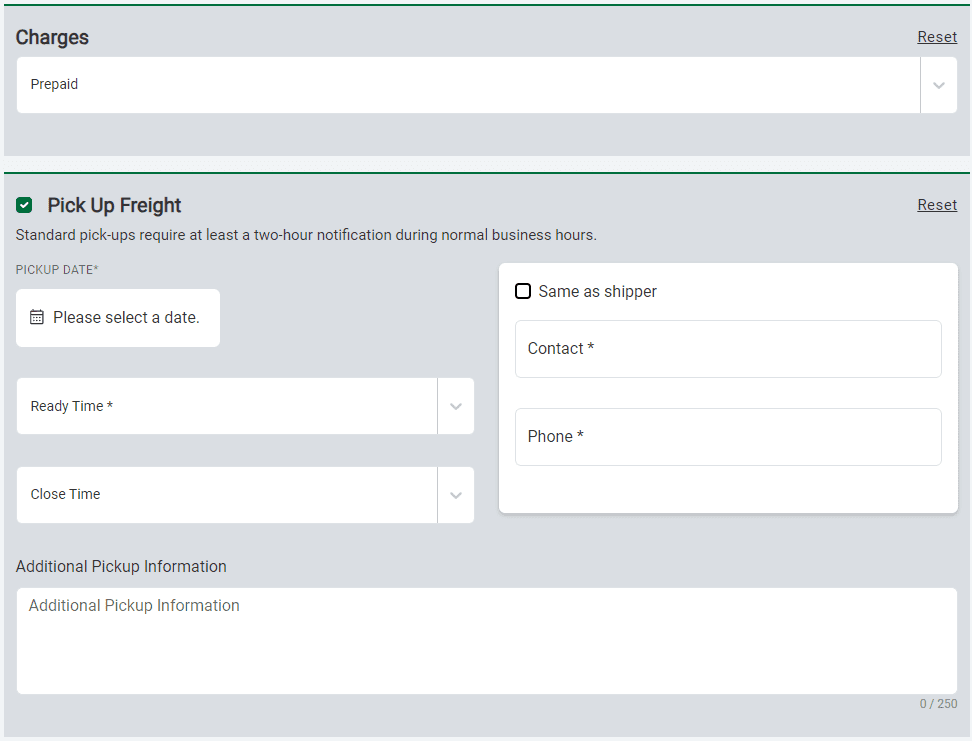
Pickup Freight: This section allows you to notify us when and who to contact to pick up your shipment. In the Additional Pickup Information section, please include any other details we should know about the pickup.
Commodities: This section provides a description of all the freight in your shipment. These are organized into cards. A separate card should be created for each unit of freight with a different commodity and/or size. New commodity cards can be added by clicking the green plus button at the bottom of the section or by clicking the green copy icon in the top right corner of an existing card. Enter the dimensions (length, width, and height) for each unit of freight.
The system will automatically multiply the dimensions to calculate dimensional weight (where applicable) and update the total weight for all pieces on each card. You’ll see the totals for all the freight on your shipment at the bottom of this section.

Services: This section will vary depending on your shipment type. Some services are selected by simply checking the box, while others, such as refrigerated cargo, will require additional information.

When submitting a shipment, all required fields must be completed. Otherwise, you will receive an error notification with the required fields highlighted in red. Note: Please ensure that form fields do not contain any of the following special characters, which will need to be removed before submitting: (, ), |, \, /, %,, {, }, :, ;.
Click the Submit button to send the shipment request to us. A confirmation message will appear on the next page, along with the shipment number and document links that you can click to save or print for your records. This will also take you back to the New Shipment starting page so you can begin your next shipment. All shipments can be found by clicking on the Activity page. View the activity help page for more details.
You may also place the shipment on hold by clicking the Put On Hold button. This allows you to save incomplete shipment requests as needed, without having to re-enter information. View the on-hold help page for more details.