
If you aren’t quite ready to submit a shipment request, you can use two functions: create a preview PDF or put a shipment on hold. Start with a template or a blank form and fill in as much detail as you like. It is not necessary to complete all required fields to create a preview PDF or put a shipment on hold.
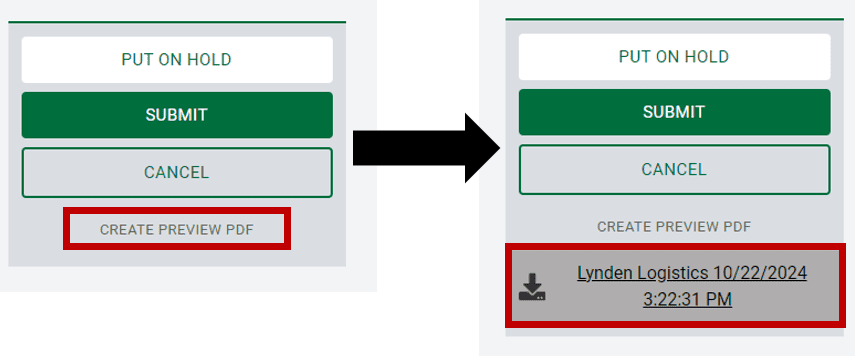
To Create a Preview PDF: Click the link on the right, and a PDF link will appear below. Click that link to open it in your browser, where you can save or print it.
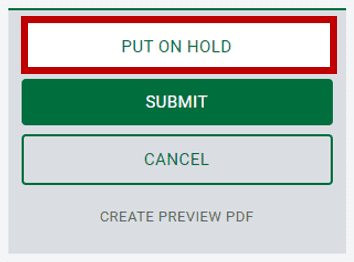
To Put a Shipment On Hold: Click the white Put On Hold button. This will save the shipment in its current state, allowing you to come back and fill in the rest of the shipment details later.
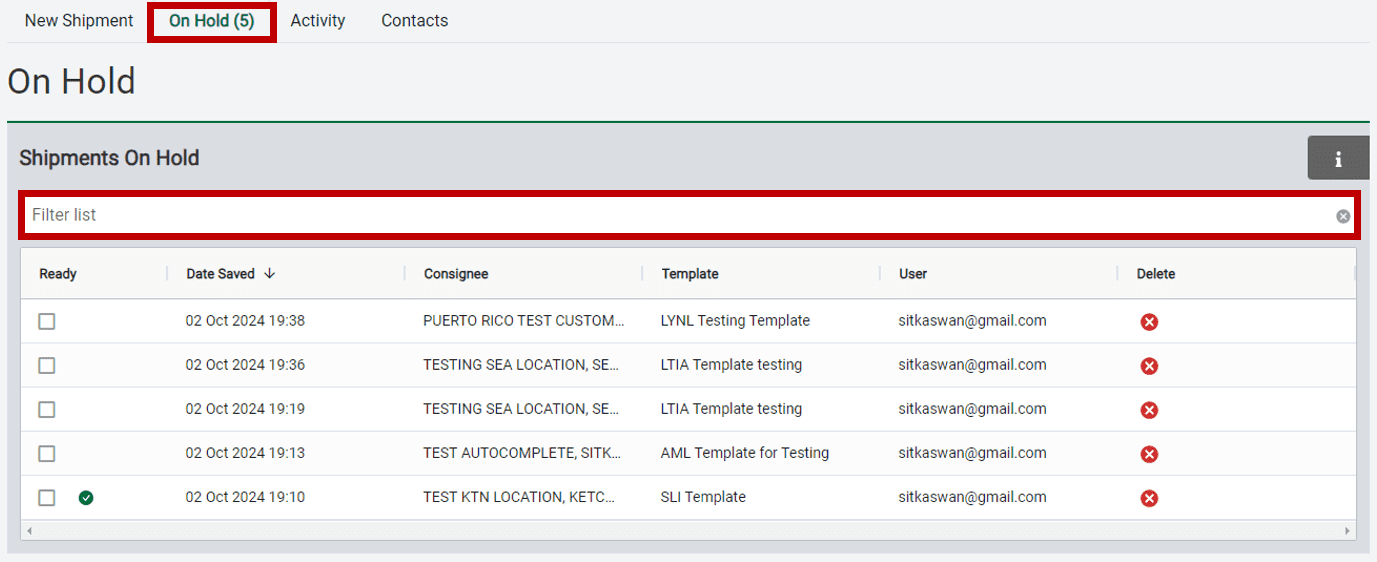
To retrieve your on-hold shipments, click the On Hold tab at the top. You may apply filters to the list of on-hold items as needed to locate your shipment.
To edit a single on-hold shipment, click on the shipment row. You will have the option to place it back on hold if needed.
Update any missing fields in the form. Once all required fields are completed, you can click the green Submit button. A confirmation will appear on the next page, along with the shipment number and document links that you can click to save or print for your records. This will also take you back to the new shipment page, where you can start your next shipment.
When viewing the Shipments On Hold list, a green check mark will appear in the Ready column, indicating that it can be shipped directly from this page. To do so, check the Ready box in the shipment row and click the green Ship Now button at the top.
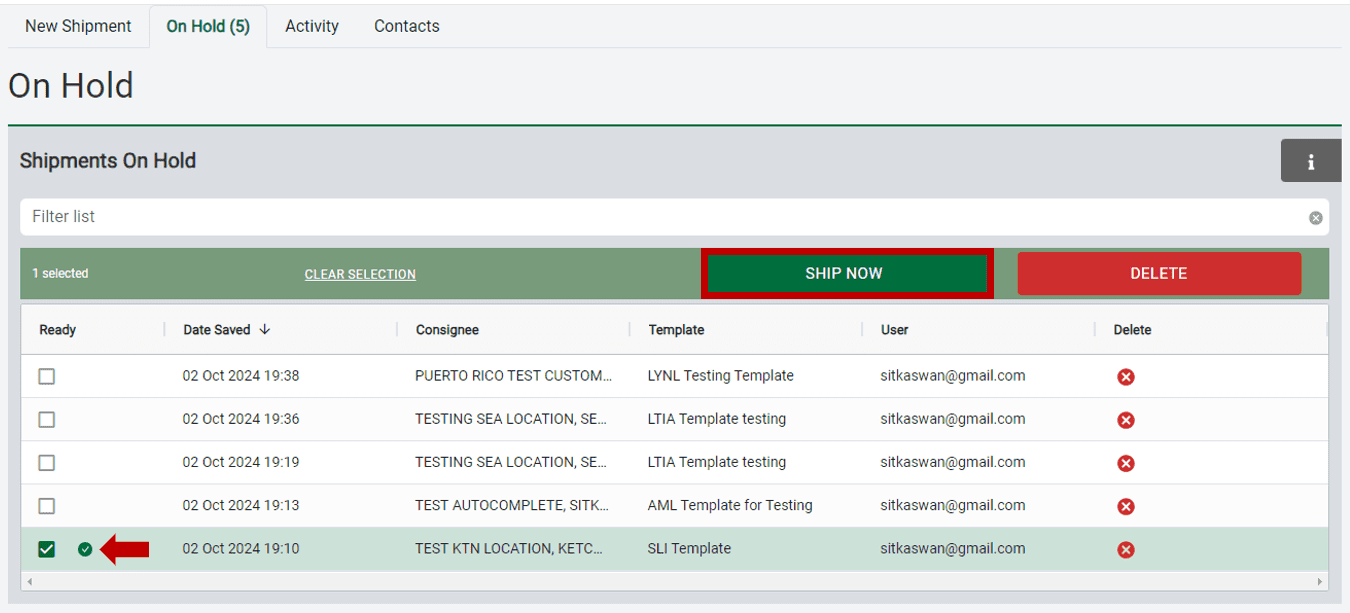
If you wish to handle multiple on-hold shipments, you can select two or more by checking the box next to each on-hold shipment. You will have the option to ship now, delete those shipments, or clear your selection by unchecking all boxes.